



The GameEngine Levels feature gamifies learning by creating a structured progression system. Learners earn points, unlock levels, and achieve milestones based on their activities. This system helps learners stay motivated, track their progress, and consistently move forward in their courses.
How to create a Levels
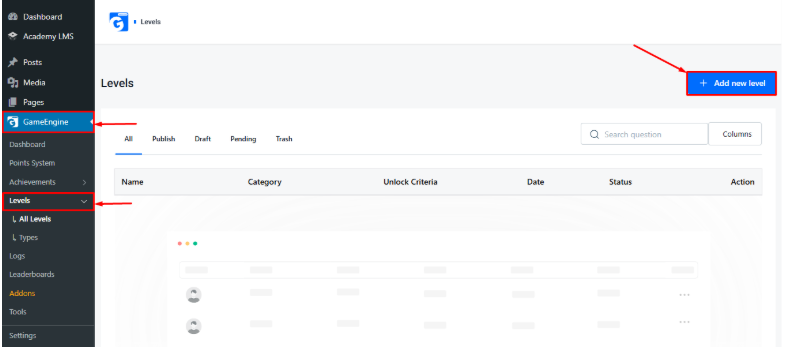
To create a new level: Go to the GameEngine Levels section in your WordPress dashboard. Click on Add New Level. Once clicked, you’ll be redirected to the Create Level page. This page is designed to be simple and intuitive, allowing you to set up levels quickly and efficiently. It is divided into two main sections.
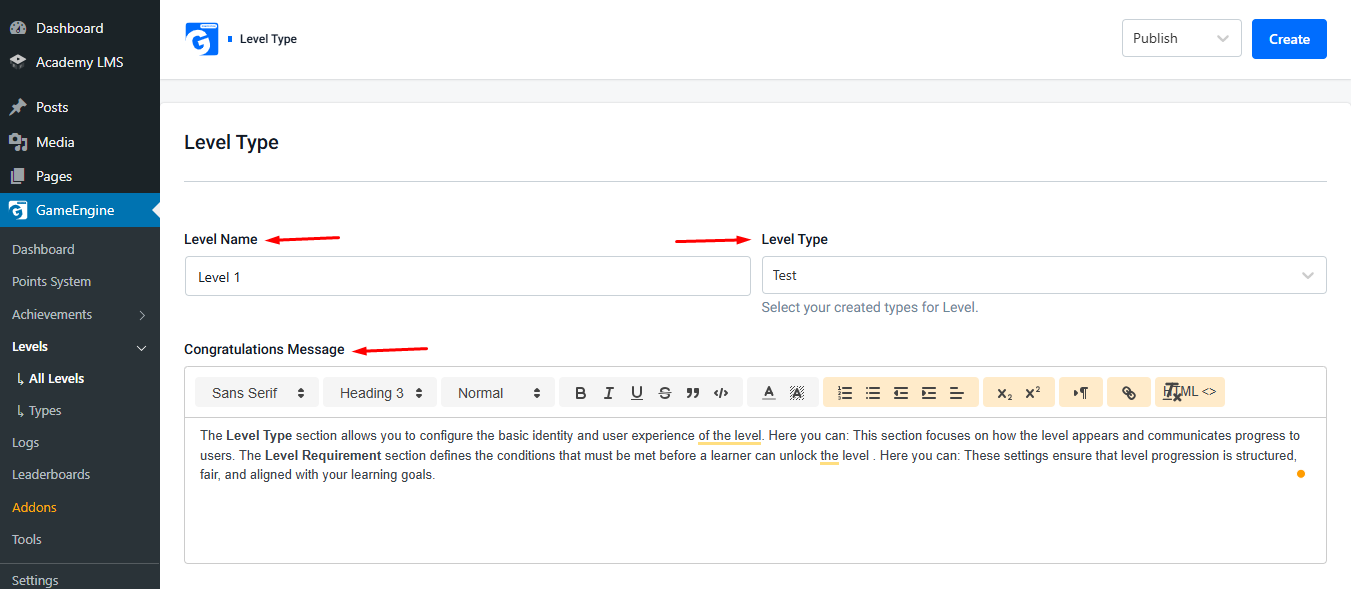
Level Types: In this section, you define the core details of the level and how it is presented to users. Configure the following fields:
- Level Name: Enter the name of the level that will be displayed to learners.
- Level type: Select the level point you created earlier to define progression criteria.
- Congratulations Message: Write a custom message that users will see immediately after unlocking the level, helping to reinforce motivation and achievement.
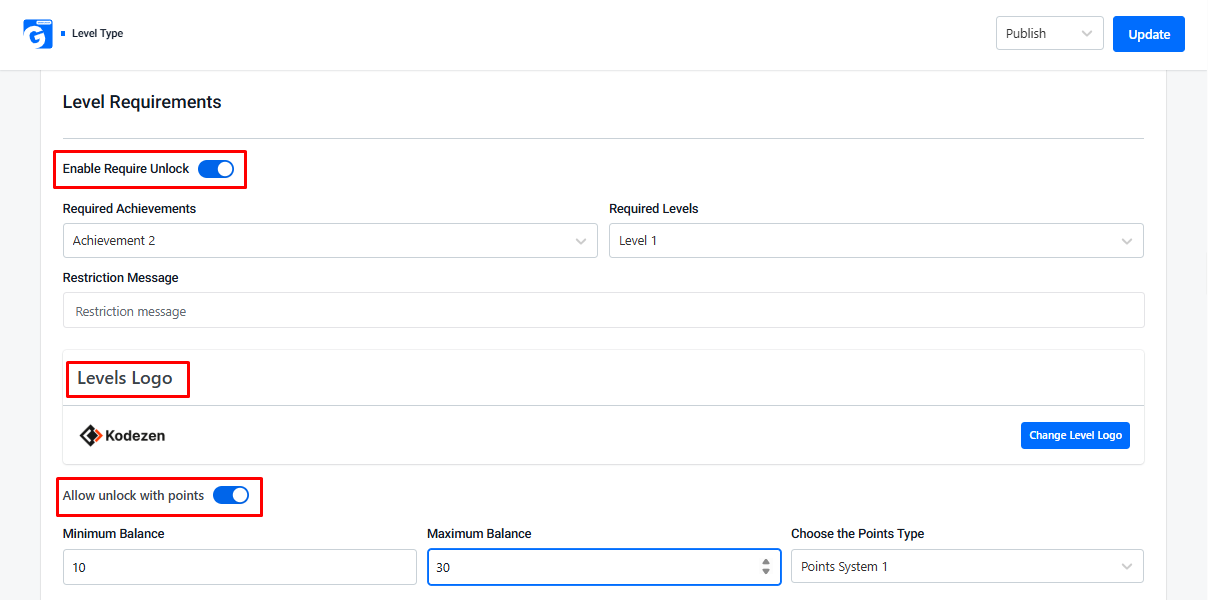
Level Requirements: The Level Requirement section defines the conditions that must be met before a learner can unlock the level.
- Enable Required Block: Turn this on to define specific conditions that users must meet to unlock the level.
- Required Achievements: Select the achievements users must complete.
- Required Levels: Choose the levels that must be unlocked beforehand.
- Restriction Message: Set a custom message that will be shown to users if the requirements are not met.
This feature ensures that progression is structured and learners complete essential milestones before advancing.
- Level Logo: Upload an icon or image to visually represent the level on the frontend.
- Allow Unlock with Points: Enable point-based unlocking and specify the required points.
Please Note: If you prefer to use a direct point trigger instead of the default system, simply disable Allow Unlock with Points and select your desired trigger to complete the level.
After completing all the required steps, click the Create or Update button located in the top-right corner of the page to save your changes.
How to create a types
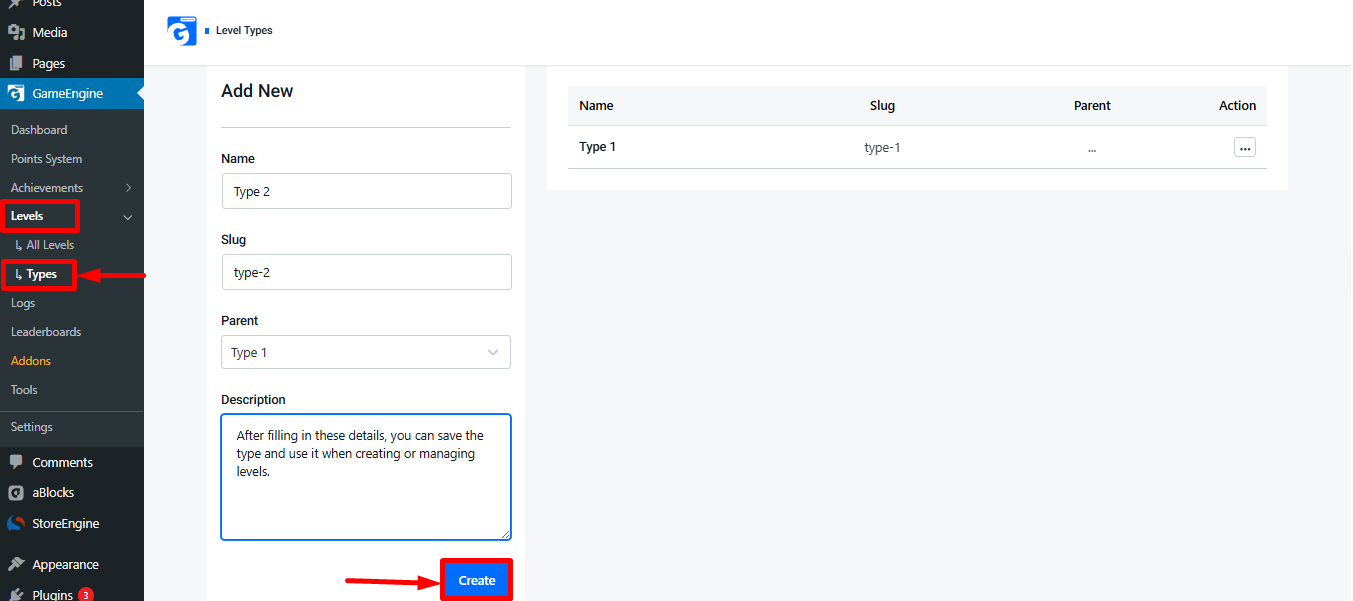
Navigate to the Types section under Levels. Once selected, the Create Type page will open in your browser. To create a new type, configure the following fields:
- Name: Enter a clear and descriptive name for the level type
- Slug: This is automatically generated based on the Name you enter.
- Parent: Select a parent type if you want to create a hierarchical structure
- Description: Add a short description to explain the purpose of the type
After filling in these details, you can Create or Update the type and use it when creating or managing levels.
The GameEngine Levels feature gamifies learning by tracking progress and rewarding achievements. Properly creating levels and types ensures a smooth, engaging, and motivating experience for learners, helping them advance through courses with clear milestones and a sense of accomplishment.