



A leaderboard is one of the most strategically effective tools you can implement on a WordPress website. Whether you manage an e-commerce store, a membership platform, or an online community, a well-configured leaderboard gives your users a compelling, ongoing reason to remain engaged with your site.
Unlike conventional promotional tactics, a leaderboard leverages intrinsic human motivators — the desire to compete, earn recognition, and track personal progress — to drive consistent user behavior without relying on discounts or paid campaigns.
This guide provides a complete, step-by-step walkthrough for implementing a WordPress leaderboard using GameEngine, a flexible gamification plugin designed specifically for the WordPress ecosystem.
What Is a WordPress Leaderboard?
A WordPress leaderboard is a dynamic ranking system that displays users in order of a measurable metric — typically a points total accumulated through defined on-site actions. It functions as a persistent scoreboard that updates in real time as users engage with your platform.
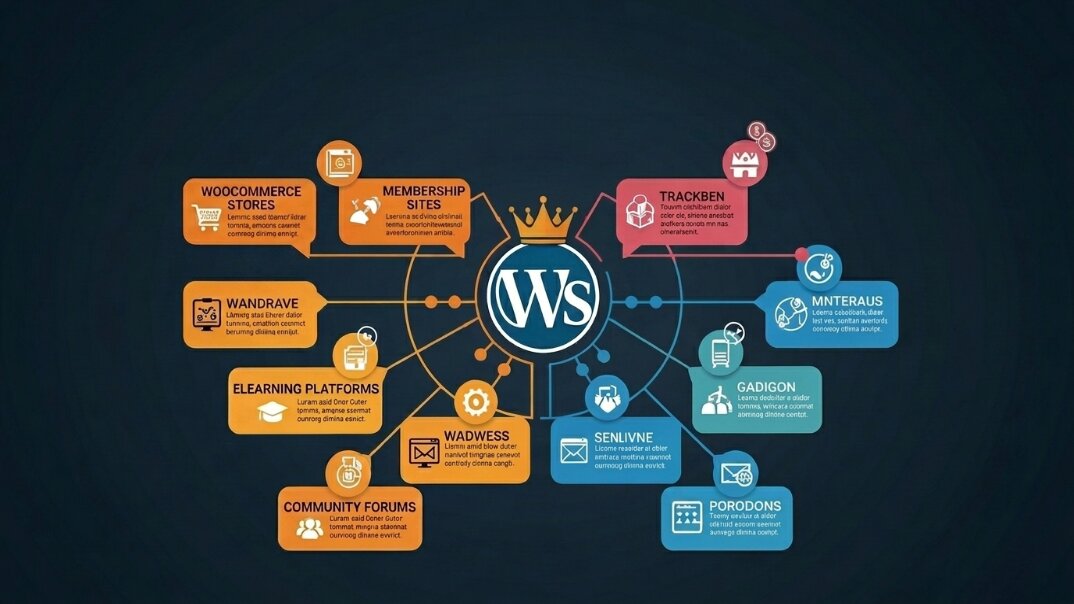
The system is equally applicable to commercial and community contexts:
- WooCommerce stores — rank customers by total purchases or points earned per order
- Membership sites — rank members by content views, comments, or login frequency
- eLearning platforms — rank students by lessons completed or quiz performance
- Community forums — rank contributors by posts submitted, likes received, or helpful answers
- Nonprofit or volunteer platforms — rank participants by hours logged, tasks completed, or milestones reached
The underlying principle is consistent across all use cases: when users can see their position relative to others, they are naturally motivated to improve it. This converts passive visitors into active, returning participants — without requiring additional marketing spend.
Why Add a Leaderboard to Your WordPress Site?
Before proceeding with the technical setup, it is worth examining the core reasons a leaderboard functions as an effective growth mechanism — whether your priority is revenue, community health, or both.
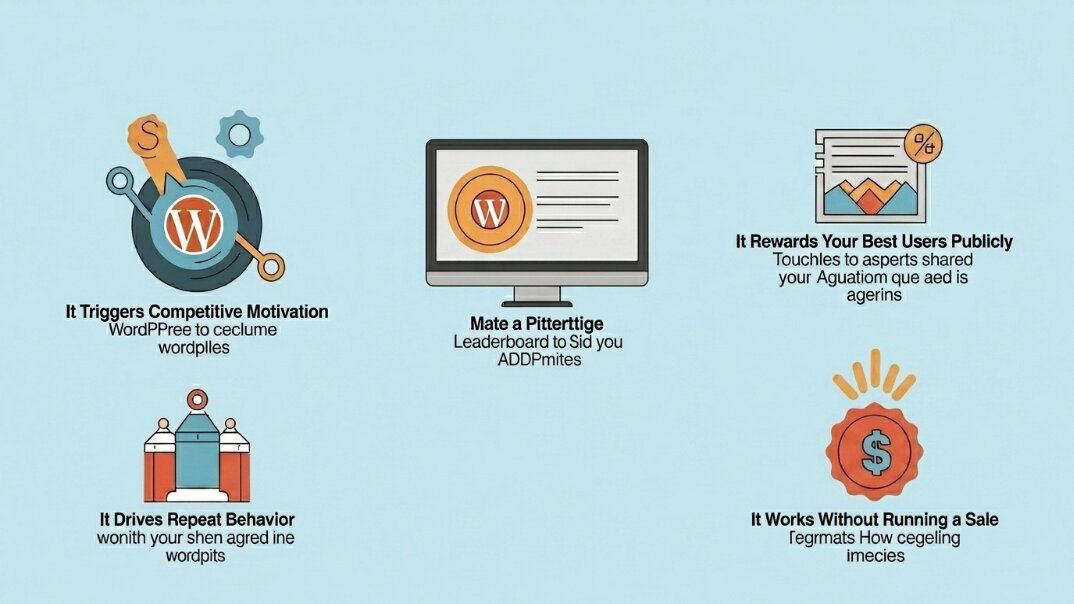
1. It Activates Competitive Motivation
The competitive impulse is a well-documented aspect of human psychology. A customer who sees themselves ranked eighth — only 20 points behind the person in seventh place — will frequently take an additional action solely to advance their position. The same applies to a forum member who is close to reaching the top contributor spot. A leaderboard channels this impulse directly into measurable engagement.
2. It Publicly Rewards High-Value Users
Your most loyal customers and most active community members represent significant value to your platform. A visible leaderboard confers status and social recognition upon these individuals — a form of reward that is often more motivating than a discount code or a badge delivered in private, and costs nothing to deliver.
3. It Encourages Long-Term Repeat Behavior
A single transaction does not create a loyal customer. A single comment does not build a thriving community. A leaderboard provides users with an ongoing, evolving reason to return — whether to place another order, contribute more content, or simply maintain their ranking. This sustained engagement is the foundation of both customer retention and community growth.
4. It Drives Results Without Discounting
Store owners often default to price reductions when they want to stimulate activity. Community managers resort to email campaigns. A leaderboard achieves comparable outcomes without either, because the incentive is recognition and achievement rather than monetary value.
Step-by-Step: Setting Up a WordPress Leaderboard with GameEngine
Step 1 — Install and Activate GameEngine
Begin by installing the GameEngine plugin on your WordPress site.
- Download GameEngine from the official website. A free version is available with core features; Pro plans are also offered — refer to the pricing page for current details.
- In your WordPress admin panel, go to Plugins > Add New > Upload Plugin.
- Upload the .zip file and click Install Now.
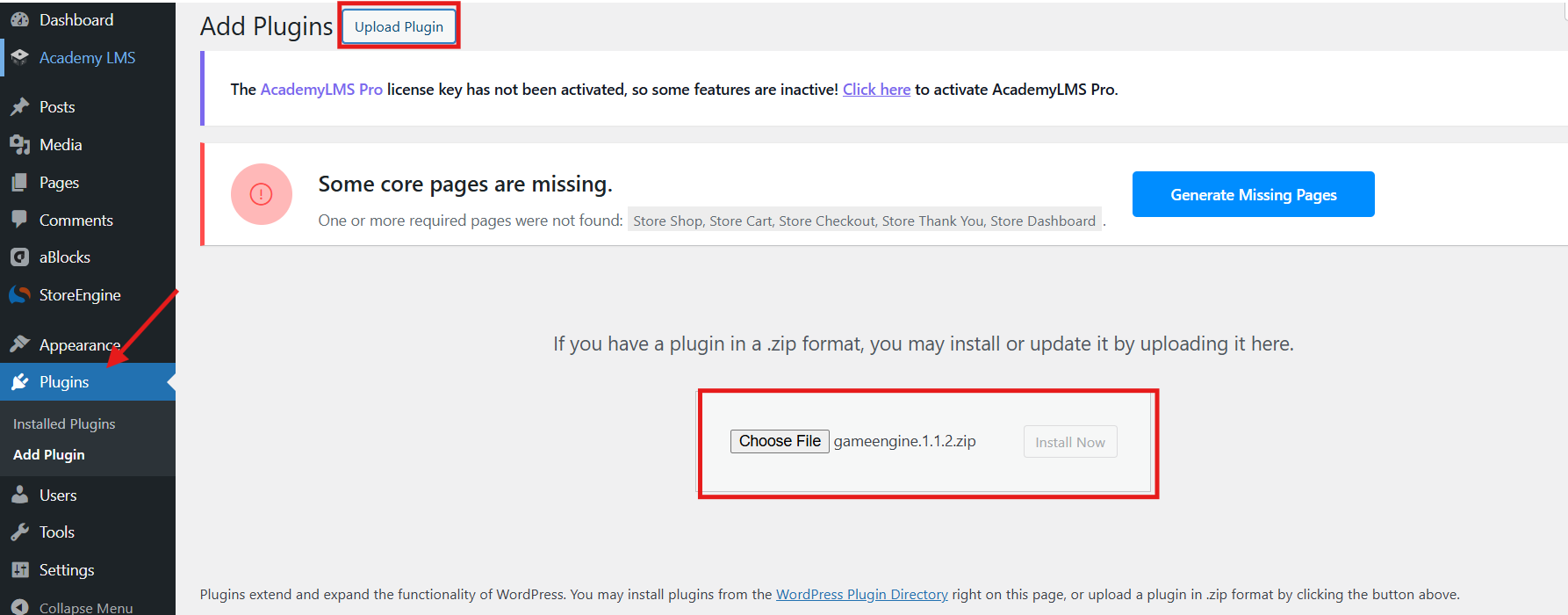
4. Once installed, click Activate.
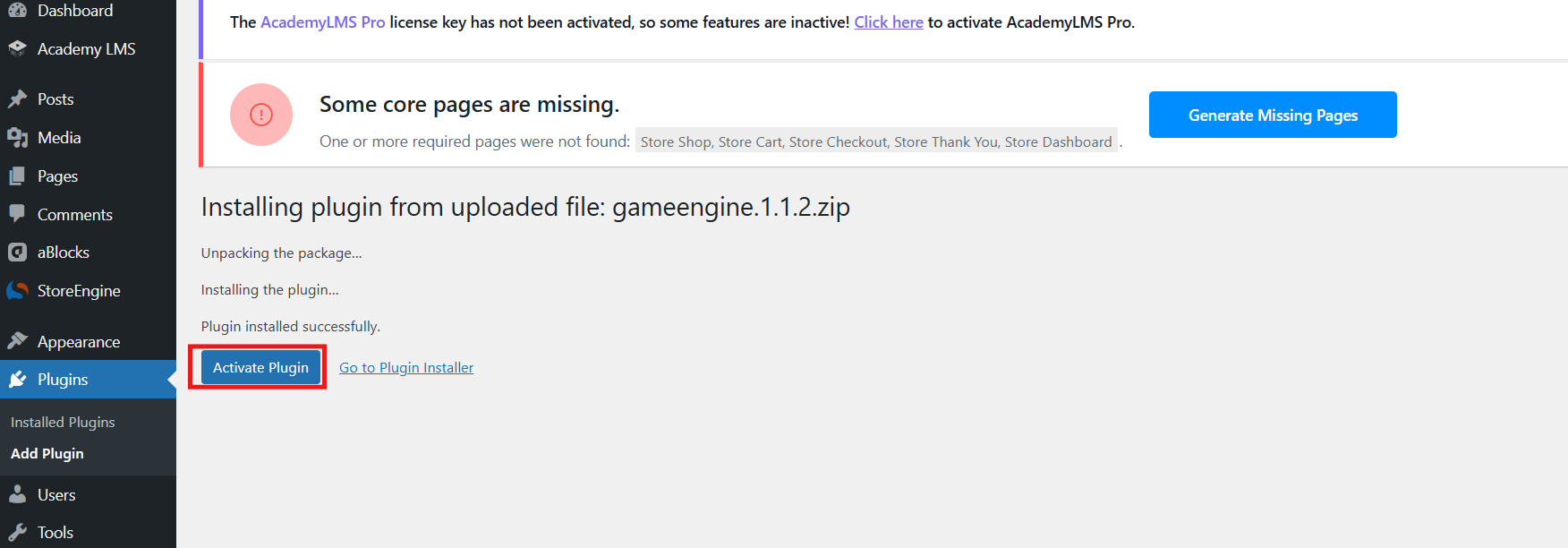
After activation, you will see a new GameEngine menu item in your WordPress admin sidebar with options including Dashboard, Points System, Achievements, Levels, Logs, Leaderboards, and more.
Step 2 — Set Up a Points System
A leaderboard ranks users by their points. Before the leaderboard can display anything, you need to set up a points system that automatically awards points for user actions.
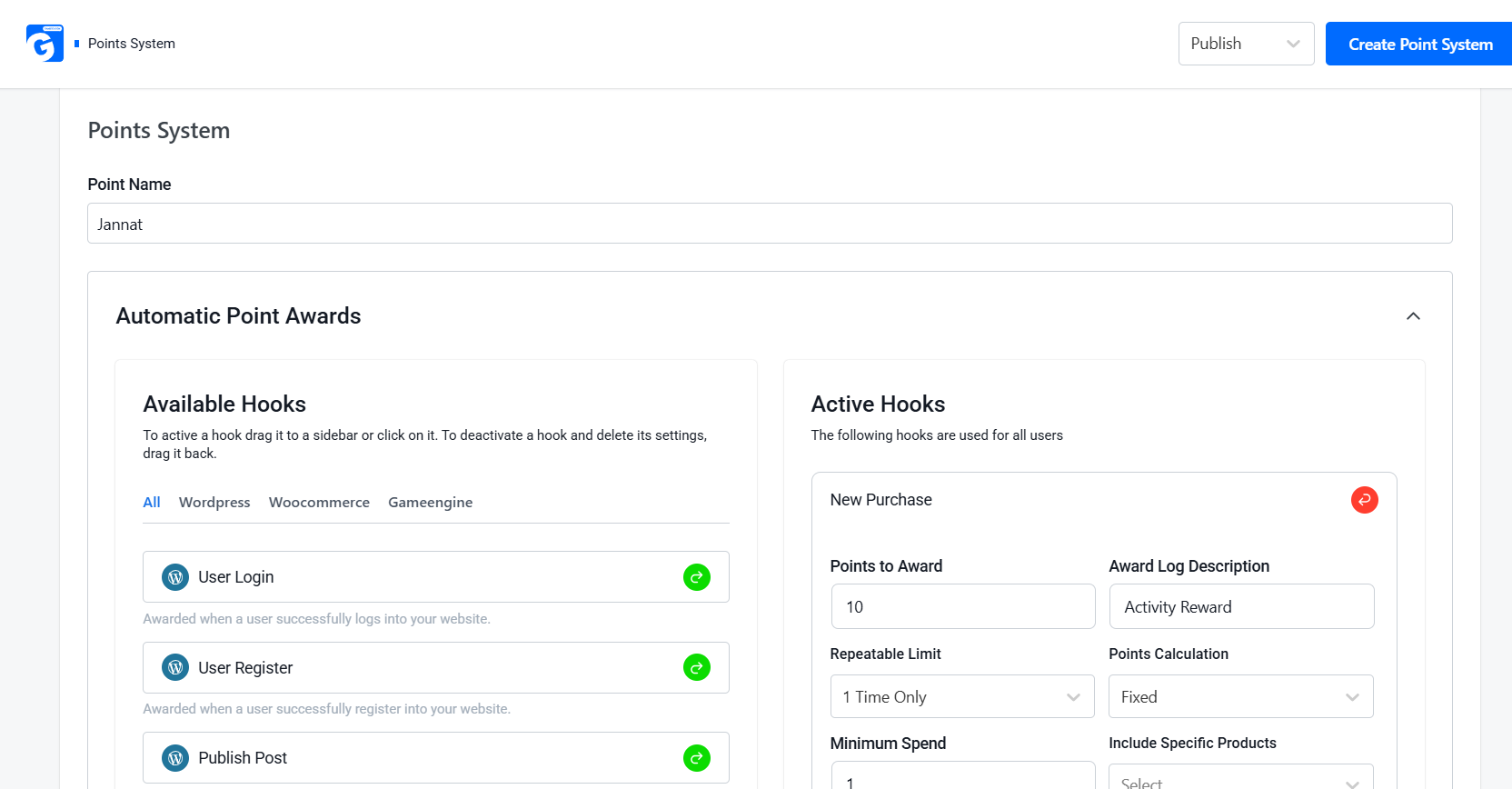
Go to GameEngine > Points System in your WordPress admin panel. At the top, enter your points currency name in the Point Name field — for example, Jannat.
You will see the Automatic Point Awards section with an Available Hooks panel. Hooks are the actions that trigger point awards. They are organized into three tabs:
- WordPress — User Login, User Register, Publish Post, Post Comment, Profile Update, Daily Visit, Visit Specific Post, Author Reply, and more
- WooCommerce — New Purchase, Purchase Specific Product, Review Product, Refund Order, and more
- GameEngine — Unlock Achievement and other in-plugin triggers
To activate a hook, simply click on it or drag it to the Active Hooks panel on the right. Each hook lets you set the number of points awarded for that action.
For a store-based leaderboard, activate the New Purchase hook and set your points value — for example, 10 points per order. Once activated, fill in the settings and click Create Point System to save.
Step 3 — Review the Leaderboard
With a points system in place, the leaderboard will begin populating as users earn points.
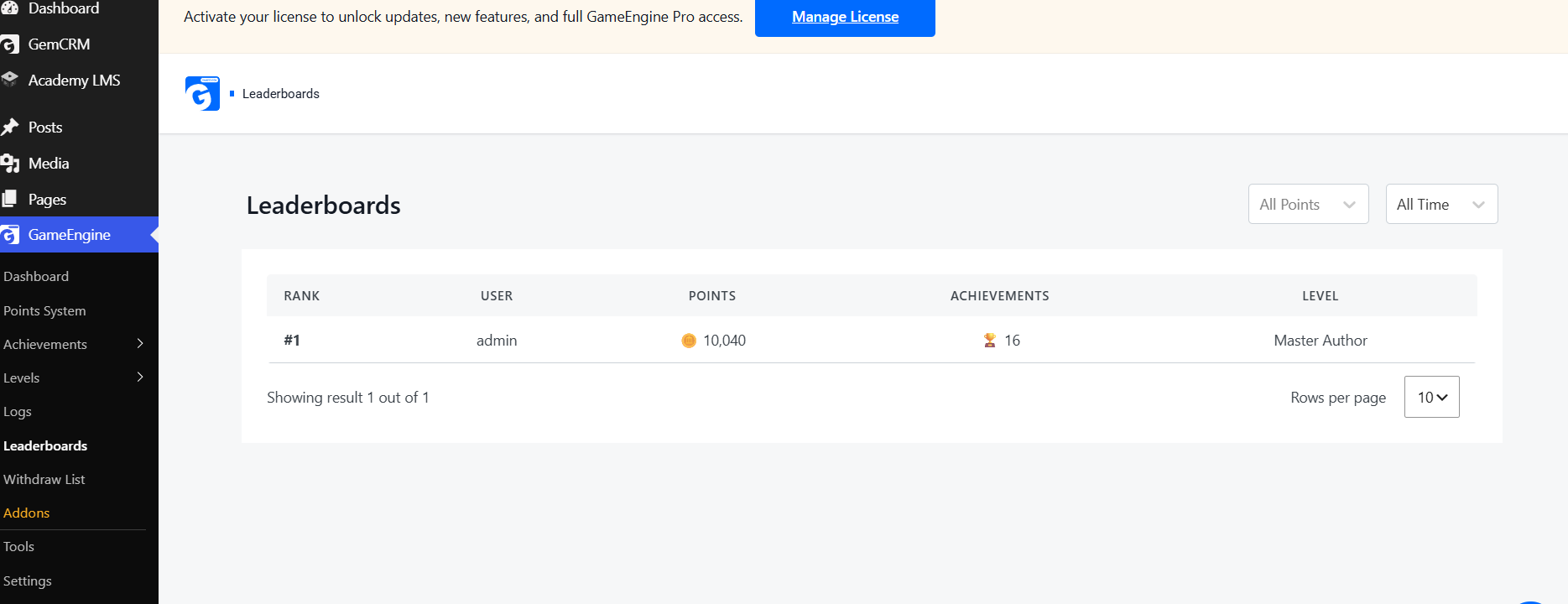
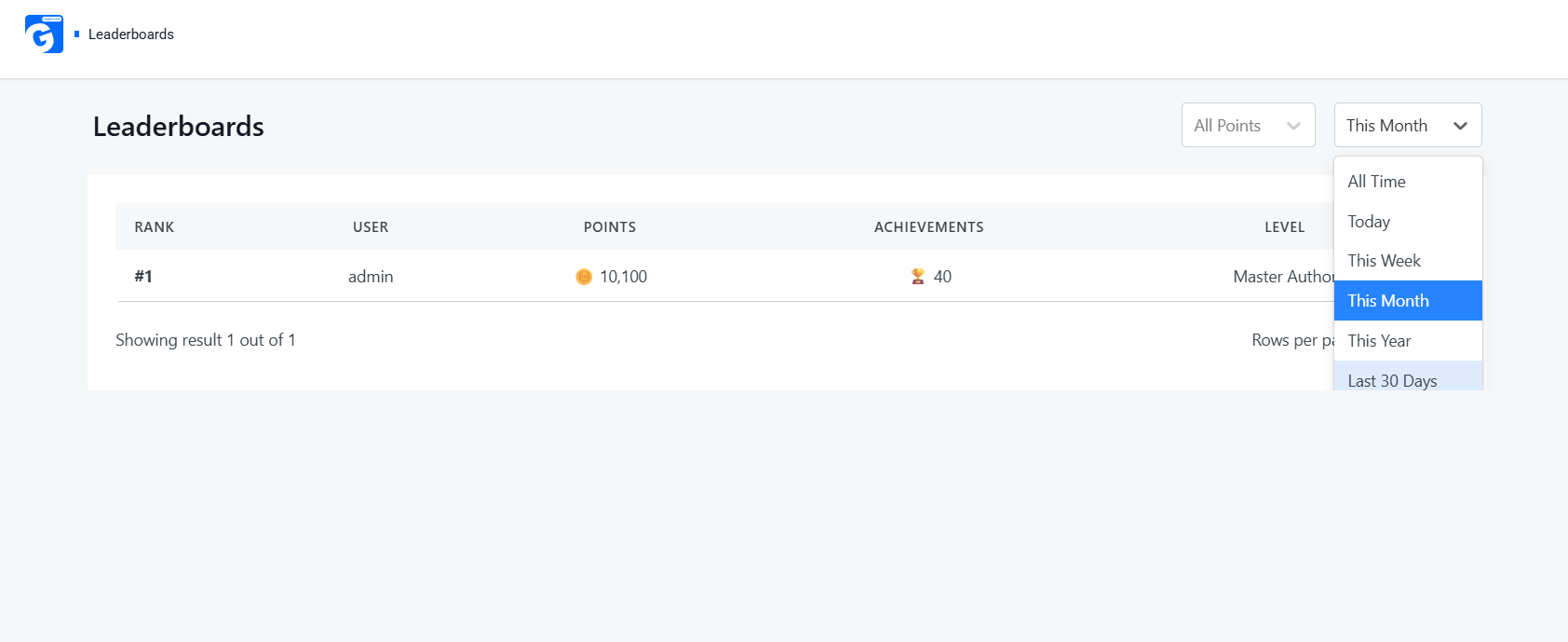
Navigate to GameEngine > Leaderboards in your admin panel. The leaderboard updates automatically and displays the following data for each user:
|
Column |
Description |
|
Rank |
The user’s current position |
|
User |
Their username or display name |
|
Points |
Total points earned |
|
Achievements |
Number of badges/unlocks |
|
Level |
Their current level (e.g., Master Author, Legend) |
Use the All Points dropdown to filter by a specific points system, and the All Time dropdown to toggle between All Time, Monthly, and Weekly views.
Step 4 — Display Gamification Data on Your Site
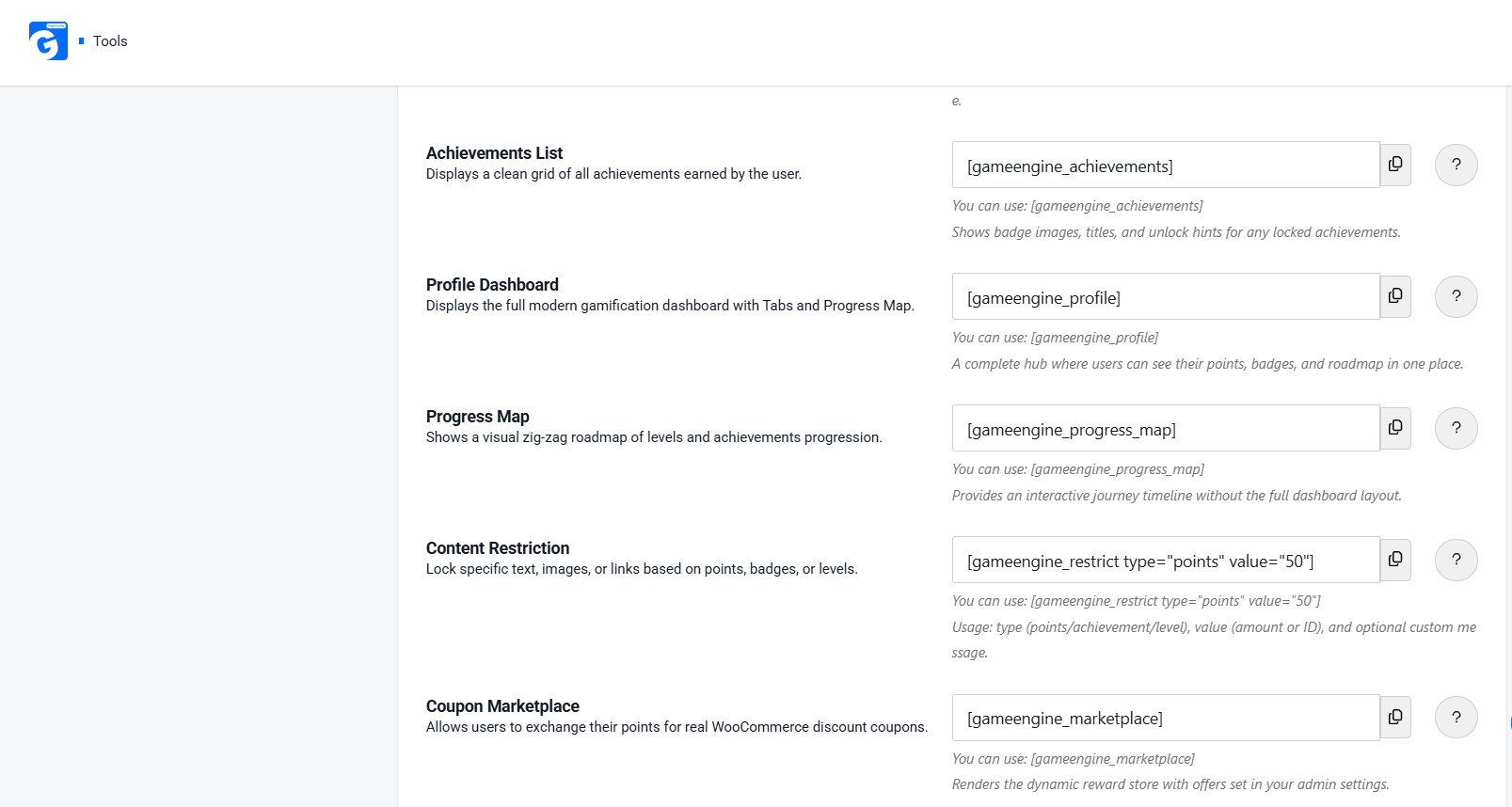
GameEngine provides a set of shortcodes, accessible under GameEngine > Tools > Shortcodes, that allow you to embed gamification elements on any page or post.
|
Shortcode |
What It Displays |
[gameengine_points] |
User’s current points balance |
[gameengine_level] |
User’s highest achieved level |
[gameengine_achievements] |
Clean grid of all achievements earned, with badge images, titles, and unlock hints |
[gameengine_profile] |
Full modern gamification dashboard with tabs and progress map — a complete hub for points, badges, and roadmap |
[gameengine_progress_map] |
Interactive zig-zag journey timeline of levels and achievements |
[gameengine_marketplace] |
A dynamic reward store where users exchange points for WooCommerce coupons |
Recommended: To provide users with a consolidated view of their rank, points, and achievements, create a dedicated page and insert the [gameengine_profile] shortcode. Publish the page and link to it from your navigation menu or user dashboard. This is the most efficient way to surface your leaderboard on the front end — for both store customers and community members alike.
Step 5 — Connect the Leaderboard to Tangible Rewards
A leaderboard generates competitive engagement. Pairing it with meaningful rewards sustains that engagement over time. GameEngine supports four primary reward mechanisms, applicable to both store and community contexts.
Option A — Points Redemption at Checkout (Store)
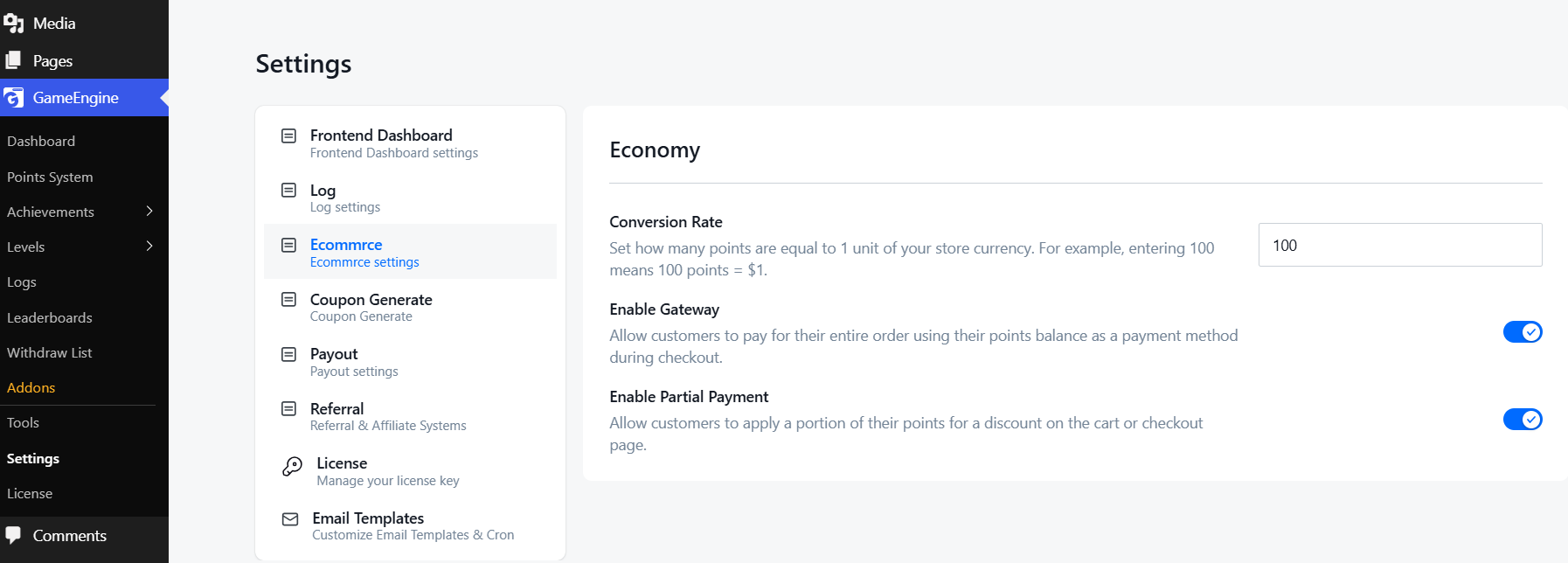
Navigate to GameEngine > Settings > Ecommerce and configure the following Economy settings:
- Conversion Rate — Define how many points equal one unit of currency (default: 100 points = $1)
- Enable Gateway — Allow customers to pay for an entire order using points
- Enable Partial Payment — Allow customers to apply points as a partial discount at checkout
Option B — Rewards Marketplace (Store & Community)
Navigate to GameEngine > Settings > Coupon Generate and enable the Enable Coupon Generate toggle. Click Add Offer and complete the following fields:
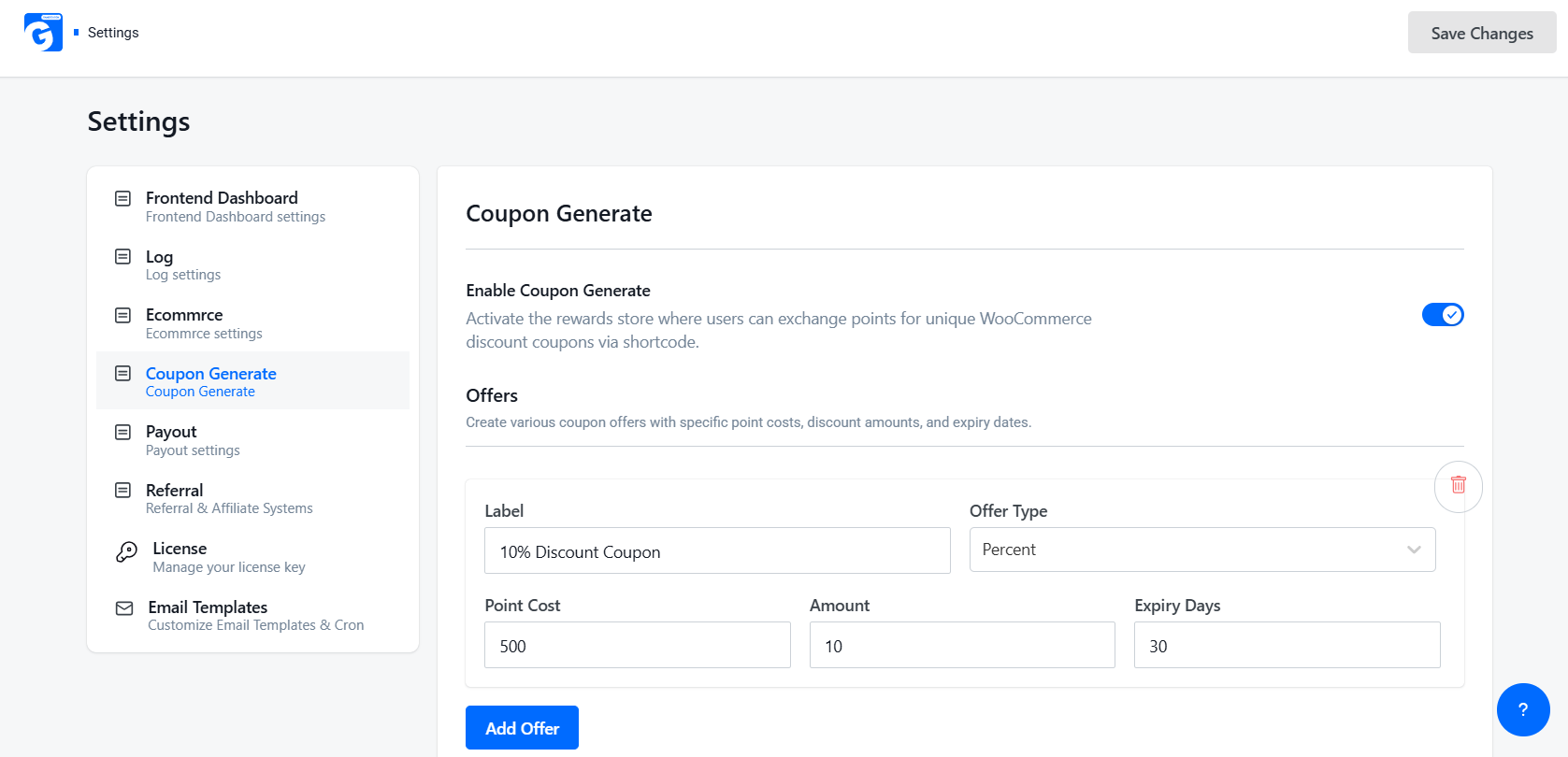
Then click Add Offer and fill in the details:
- Label — Name of the coupon (e.g., 10% Discount Coupon)
- Offer Type — Percent or Fixed amount
- Point Cost — How many points to redeem (e.g., 500)
- Amount — Discount value (e.g., 10)
- Expiry Days — How long the coupon stays valid (e.g., 30)
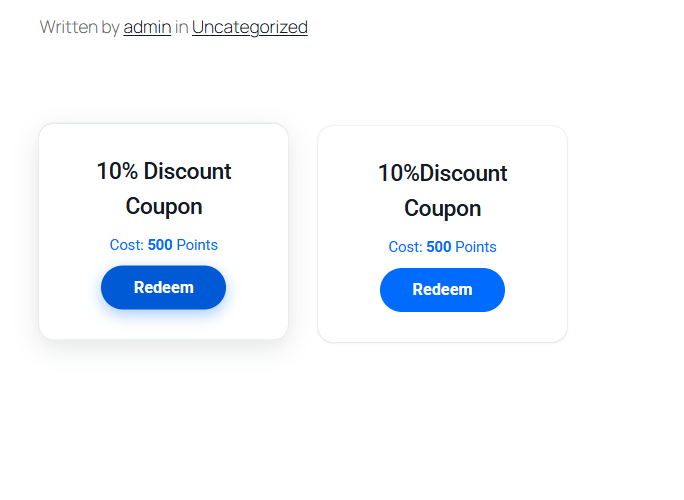
Place the [gameengine_marketplace] shortcode on any page. Users can browse available offers and redeem them instantly using their accumulated points. For community sites, this can be configured to unlock premium content, exclusive forum access, or other non-monetary rewards.
Option C — Points Withdrawal (Store)
GameEngine allows users to convert earned points into monetary payouts. Navigate to GameEngine > Settings > Payout, enable the Enable Payout toggle, and configure the following:
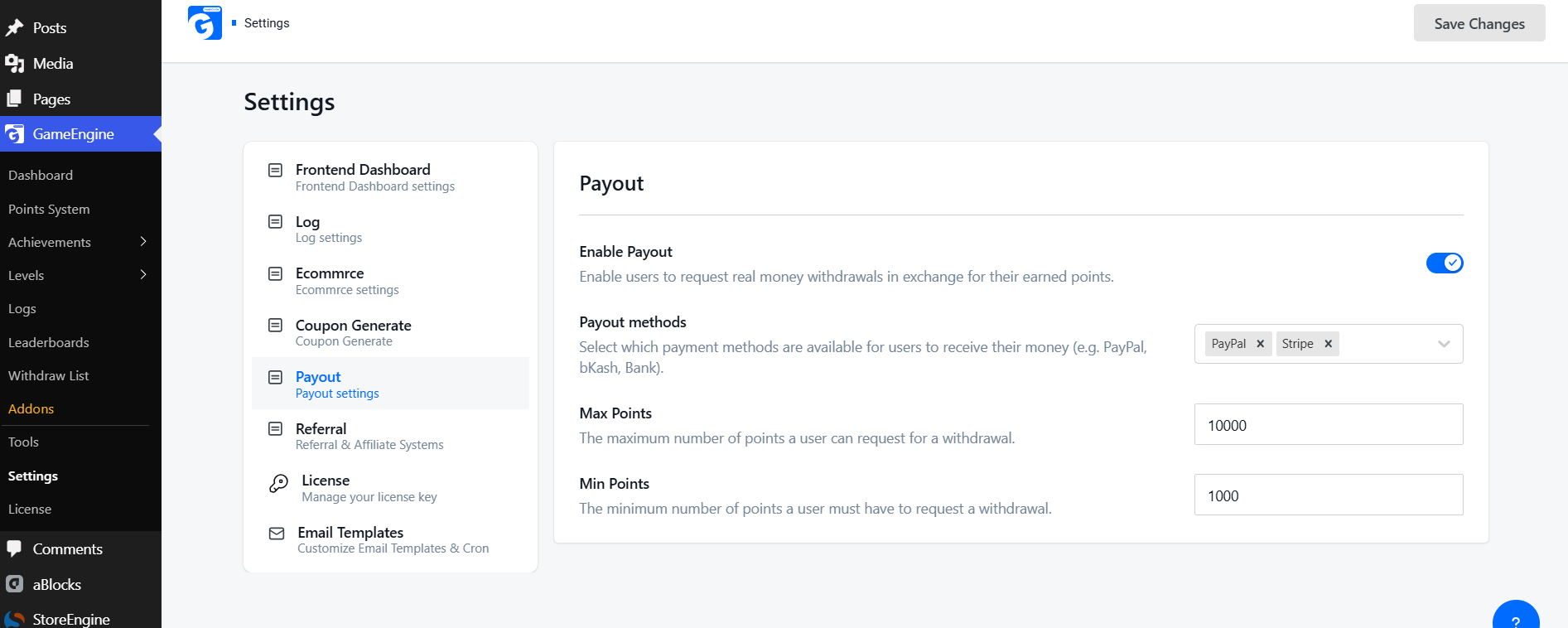
- Payout Methods — Choose PayPal, Stripe, or bKash
- Max Points — Maximum points per withdrawal (default: 10,000)
- Min Points — Minimum points required to withdraw (default: 1,000)
Then place [gameengine_payout] on any page to display the withdrawal form for users.
Option D — Monthly Winner Recognition (Store & Community)
At the end of each month, navigate to GameEngine > Leaderboards and select This Month from the time filter dropdown. The leaderboard will display that month’s top-ranked users along with their points, achievements, and level.
Announce the top performers via your email newsletter or social media channels. For community platforms, public recognition of top contributors can be particularly effective in reinforcing a culture of participation and generosity.
GameEngine also includes a built-in Email Reward Alerts feature that automatically notifies users when they earn points, unlock badges, or advance to a new level.
Implementation Best Practices
The following guidelines apply equally to store and community leaderboard deployments:
Lower the entry barrier. If the leaderboard only displays users with 1,000 or more points while the majority of your users have fewer than 100, the gap will appear insurmountable. Display a broader list — the top 50 or top 100 — and always include a “Your Current Rank” indicator so that every user understands precisely where they stand.
Reset rankings periodically. Monthly or weekly resets create a level playing field for newer users and prevent a small group of established users from permanently dominating the rankings. This is particularly important for community sites, where long-tenured members can otherwise discourage newer participants from competing. GameEngine’s built-in time filters (This Month / This Week) make periodic resets straightforward to manage.
Promote the leaderboard actively. Users cannot be motivated by a feature they are unaware of. Add a leaderboard widget to your site’s sidebar, reference it in welcome emails, order confirmation messages, and community announcements. Consistent promotion ensures that the leaderboard remains visible and relevant.
Communicate the rules clearly. Provide a clear explanation of how points are earned, how rankings are calculated, and which actions yield the highest point values. Consider linking to a dedicated “How the Leaderboard Works” page. Transparency builds trust; ambiguity erodes it.
Final Thoughts
A WordPress leaderboard is not a superficial engagement feature. When implemented thoughtfully — with a well-defined points system, meaningful rewards, and consistent promotion — it becomes one of the most cost-efficient tools available for driving repeat purchases, deepening community participation, and recognizing your most valuable users.
GameEngine enables the entire implementation to be completed within the WordPress dashboard, from configuring point triggers to publishing a fully functional leaderboard, without any custom development. Its hook system is broad enough to support both commercial and community use cases within the same installation.
For sites that are ready to move beyond transactional discounts and isolated engagement campaigns — and toward durable, lasting loyalty — a WordPress leaderboard powered by GameEngine is a sound and proven starting point.
Frequently Asked Questions (FAQ)
Do I need development experience to set up a WordPress leaderboard?
No. GameEngine is configured entirely within the WordPress admin dashboard. No coding knowledge is required.
Can I run separate leaderboards for my store and my community?
Yes. GameEngine allows you to create multiple point systems with different hook configurations. Each system can be displayed independently, allowing you to maintain a purchase-based store leaderboard and an engagement-based community leaderboard side by side.
Can I configure a monthly leaderboard rather than an all-time ranking?
Yes. GameEngine supports All Time, Monthly, and Weekly display periods, selectable via a dropdown filter.